
What is a Content URL?
A content URL is the location where you plan to place your affiliate link. For example, a YouTube video, Instagram post, blog article, newsletter, or any other piece of content where this link will live.
Adding a Content URL helps publishers and creators identify the exact piece of content where a link was placed, keeping your Links table organized and easy to navigate.
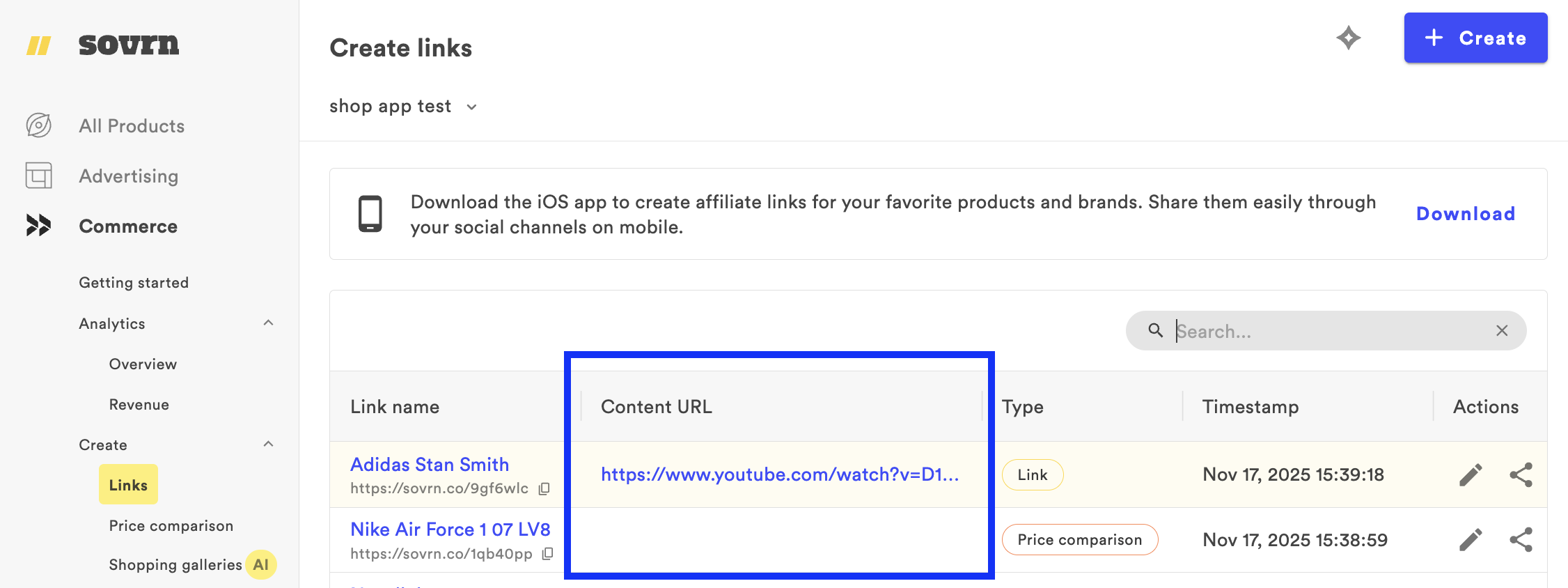
How do I add a Content URL?
You can assign a Content URL when creating or editing a link in the Sovrn platform.
When creating a new link
-
Navigate to the Create links tab in the Sovrn platform.
-
Click the + Create button in the top-right corner.
-
Select the Site where you plan to share your new affiliate link.
-
Paste your product URL into the product URL field.
-
Enter a link name.
-
In the content URL field, paste the URL of the post, page, or piece of content where this affiliate link will appear.
-
Example: YouTube video URL, Instagram post URL, blog article URL, newsletter permalink, TikTok video link, etc.
-
-
(Optional) Add tracking or advanced settings.
-
Click Create.
When editing an existing link
-
Select a Site from the dropdown on the Create links page.
-
Find your link in the table or search for it by Link name or Product URL.
-
Click the Edit icon on the right.
-
Enter or update your Content URL.
-
Click Save.
Changes may take up to fifteen minutes to take effect.
Why should I include a Content URL?
You can quickly identify clicks and revenue tied to a particular video, post, or article.
Where will I see my Content URLs?
The content URL appears in the Link table so you can easily match each affiliate link to the content where it lives.
Do I need a Content URL for my link to monetize?
No, adding a content URL is optional and does not impact your ability to earn.
Best practices
-
Add a content URL anytime you know where your link will be placed.
-
If you create links before publishing your content, return later to edit and add the content URL once it’s available.
-
Use complete URLs, not shortened redirects or ‘view once’ social links.
-
Create separate affiliate links for each piece of content if you share the same product multiple times.
I still need help.
Our team is here to support you — contact Sovrn Support with any questions or concerns you may have.